
The 60-Second Recipe For Dreamy Wildlife Photos
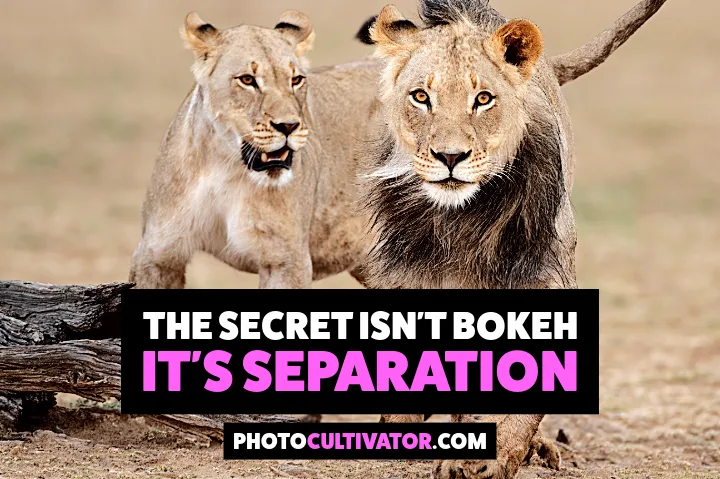
Dreamy wildlife photos aren’t a preset. They’re separation.
Sharp subject, soft foreground, soft background, and light that feels like air. Here’s how it works, and how to recreate it.
Featured Photography: All wildlife images in this tutorial are by Jeff Brenner Photography, a professional wildlife photographer specializing in the American West. Follow his work on Instagram @jeff.n.brenner.
The Formula
Wide aperture + telephoto compression + atmospheric light + selective softening = that dreamy look.
Notice how the bison’s eyes stay razor-sharp while everything else melts into a creamy blur.
That separation isn’t an accident. It’s one of the essential camera techniques that separates beginners from confident photographers.
Why This Works
This style mimics human vision.
When you focus on something in real life, everything else softens naturally.
As you recreate that selective focus through atmospheric conditions and targeted editing, you make wildlife photos feel immersive and intimate.
The compressed backgrounds from telephoto lenses, the natural haze from weather and light, and the selective sharpness on eyes all work together to create separation, visual and emotional.
Want the exact workflow?
If you want to recreate this look in your own images, without the muddy backgrounds, fake vignettes, or over-processed feel that screams “amateur edit”, the premium section walks you through the exact Lightroom sequence, plus the small balance checks that separate invisible edits from obvious ones.
You’ll get:
- The 60-second recipe (settings, masks, order)
- How to shoot for atmosphere (fog, backlight, golden hour)
- The exact radial mask workflow
- The “Natural Test” checklist to use before every export
Here’s the exact workflow, step by step.
Dreamy Wildlife Look (60-Second Recipe):
Shoot: Telephoto lens + wide aperture (f/2.8-f/5.6) + clean background distance
Edit: Darken and soften outside the subject (radial mask, big feather at 80-100)
Finish: Sharpen eyes only + gentle warmth + very light vignette
That’s it. Everything else is refinement.
Shoot for Atmosphere (The Missing Piece)
Most photographers try to create this look entirely in editing. That’s backwards.
The best dreamy wildlife images start with atmospheric conditions in the field.
Something many photographers miss when they’re choosing camera settings for nature and wildlife.
Fog and mist are your friends
Shoot during early morning when natural haze hangs in the air.
This creates that soft, painterly separation between your subject and background before you even import the file.
Use backlight and rim light
Position yourself so the sun is behind or to the side of your subject. Light wrapping around fur or feathers creates natural glow and separation.
Dust, snow, or moisture in the air becomes visible and adds atmosphere instantly. These techniques work for low-light photography scenarios as well.
Shoot low when possible
Getting down to your subject’s eye level puts more foreground elements between you and the animal. These blur naturally at wide apertures, creating that soft frame around your subject.
Golden hour helps a lot
Warm, low-angle light adds natural haze through the atmosphere. Combine this with longer focal lengths and you’re already 70% of the way there before editing.
Camera Settings That Create Separation
Wide aperture is non-negotiable
Shoot between f/2.8 and f/5.6 to blur everything except your focus point—usually the eyes.
If your lens is f/6.3, just increase background distance and go longer on focal length. The look still works.
Go long with your lens
A 200mm, 400mm, or 600mm telephoto compresses the scene and creates smoother blur. The longer your focal length, the more pronounced your background melt becomes.
Many wildlife photographers find their 24-70mm lens incredibly versatile for closer subjects, but longer glass is where the magic happens for distant wildlife.
Shooting distant animals on safari? My best cameras and lenses for safari guide covers the long telephoto setups that make this kind of background separation possible in the field.
Maximize subject-to-background distance
A bison 50 feet from a tree line gives you silk-smooth blur. The same bison 5 feet from trees?
You’ll see every branch, a common photography mistake beginners make when starting out.
Keep backgrounds simple
Scout locations with clean, uncluttered backgrounds. Uniform vegetation, water, or open sky melt beautifully.
The Lightroom Workflow
Start with a well-captured image.
Editing enhances what you shot. It can’t create atmosphere that wasn’t there.
If you’re working on a calibrated photo editing monitor, you’ll see exactly what your adjustments are doing.
Step 1: Nail the Foundation
Make your global adjustments first:
- Correct overall exposure (keep it natural)
- Warm the temperature by 100-300K for that golden feel
- Pull back highlights to preserve detail
- Lift shadows slightly in your subject
Step 2: Create the Radial Mask
Select the Radial Filter tool and draw an oval around your subject—their entire body and head.
Set feather to 80-100. This ensures smooth blending with no hard edges visible.
Adjust the exterior (everything outside the mask):
- Lower exposure by -0.5 to -0.7 stops
- Drop clarity by -30 to -40 (this softens backgrounds beautifully without destroying them)
- Reduce sharpness
- Try Dehaze -5 to -10 first (negative adds haze)
Pro tip: Start with half these settings, then build slowly until you can barely notice the edit.
This pushes the background away and makes your subject pop forward.
Step 3: Sharpen the Subject
Invert your radial mask to work on the interior.
- Increase clarity by +15 to +20 on the animal
- Add sharpening
- Use a brush mask on the eyes specifically; boost sharpness and clarity here.
Sharp eyes with catchlight create emotional connection. If it’s missing, don’t force it, just brighten the eye area subtly.
Step 4: Subtle Edge Fade
Add a gentle vignette through the Effects panel:
- Amount: -10 to -20 (gentle only)
- Midpoint: 30-50
- Feather: 80+
This darkens edges and guides the viewer’s eye inward without looking like a tunnel.
Step 5: Final Polish
- Warm highlights slightly using split toning or color grading
- Cool shadows a touch for depth
- Add +5 to +10 vibrance (not saturation, vibrance is smarter)
- Check the histogram. You should have a full tonal range with detail in both shadows and highlights
If you’re struggling with Lightroom performance while editing, optimizing your Lightroom workflow can speed things up significantly.
The Natural Test (Use This Every Time)
Before you export, run this checklist:
✓ Can you tell where I edited? If yes, pull back
✓ Do the eyes look sharp and alive? If no, add more selective sharpening
✓ Does the background look soft or muddy? Muddy means you over-reduced clarity
✓ Is the vignette visible? It should be felt, not seen
✓ Would this still look real if I didn’t know I edited it? Final test for natural feel
The goal is invisible editing that enhances reality, not replaces it. If viewers notice your technique before they notice the animal, you’ve gone too far.
Your Next Step
Find one image you shot with good light, clean background distance, and a wide aperture. Open Lightroom and work through this exact workflow.
Don’t skip the radial mask. That’s the step that makes the look.
Start conservative. You can always add more atmosphere, but pulling back from over-editing is harder.
The dreamy look isn’t about fancy presets or complex techniques. It’s about separation: sharp where it matters, soft everywhere else, with light that feels like you can breathe it in.
Want to take your wildlife photography even further? Explore more photography tips and gear recommendations in the archive.
What wildlife photo are you going to edit first? Reply and let me know. I read every response.
—Hakan, Founder - PhotoCultivator.com